Google review link generator: your link, QR code and counter card.
Find your listing and get the link that opens the review box, a QR code and a card to print.
Questions
How do I get my Google review link?
There are two ways. The fast way is the Google review link generator on this page: type your business name and town, pick your listing and copy the link. To get it from Google by hand, sign in on a computer, search for your business name, select "Read reviews" on your Business Profile, then "Get more reviews", then "Copy".
Is this Google review link generator free?
Yes. There is no charge, no sign-up and no email to type in. You can search a few times a day, which is enough to make links for more than one location.
How do I make a Google review QR code?
Find your listing with the tool on this page and it works as a Google review QR code generator too: the code is drawn from your review link and you download it as a picture file. The code is the link in another form, so it keeps working for as long as the link does, and nothing tracks who scans it.
What should a Google review card say?
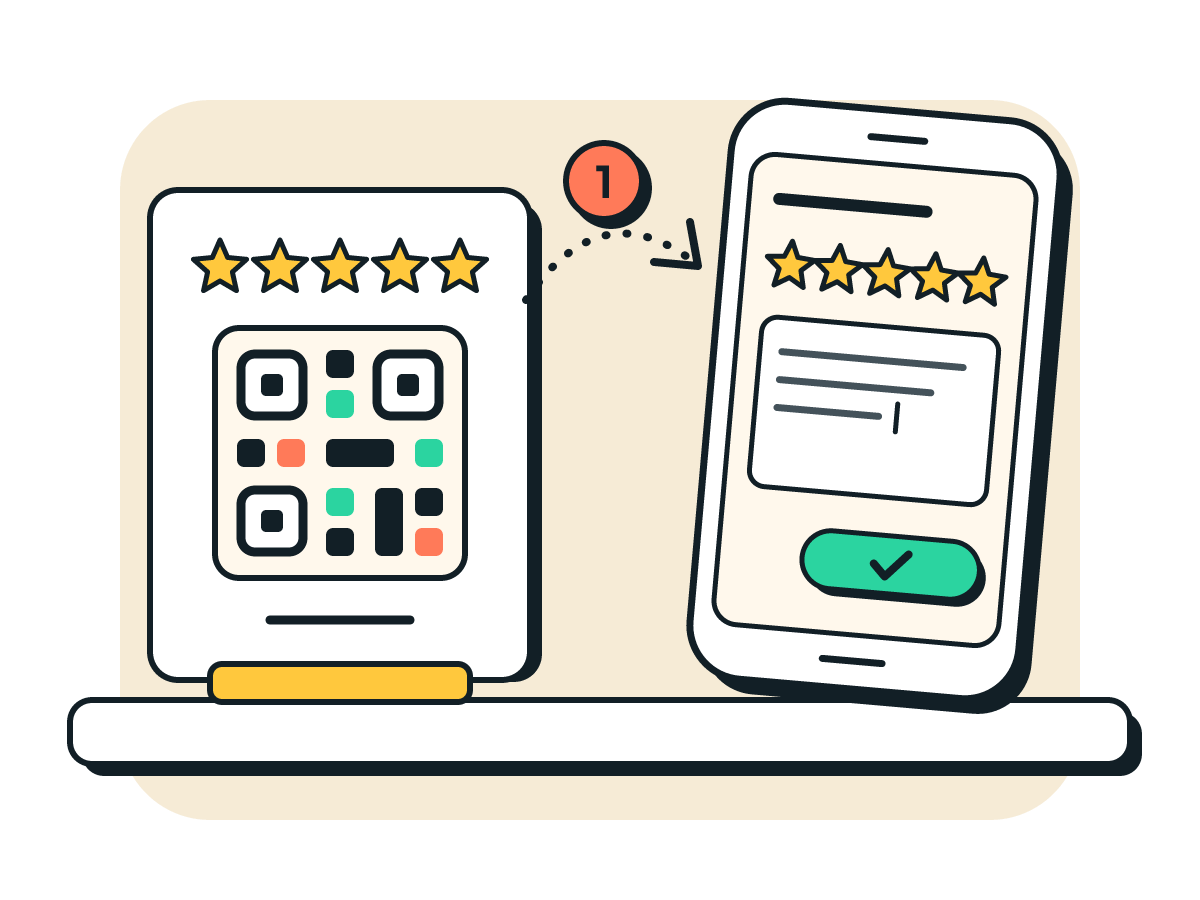
Keep a Google review card short: "Review us on Google", the QR code, one line on how to scan it, and your business name. The card from this tool has those four things at 4 by 6 inches. Do not print an offer on it, because Google does not allow rewards for reviews.
Can I offer a discount or a gift for a Google review?
No. Google's rules say a business may not offer payment, discounts, free goods or services in return for reviews, and may not ask only happy customers. Asking every customer for an honest review is allowed.
Why does my Google review link not open the review box?
The customer has to be signed in to a Google account before the box shows, so some people see a sign-in page first. If the link opens the wrong business or nothing at all, the listing may have moved or been replaced, which can change its ID. Search again here to make a fresh link.
How to get your Google review link by hand
If you manage your Business Profile, Google will give you the link itself. These are Google's own steps:
- On a computer, sign in to the Google account that manages your business and search Google for your business name. Your Business Profile shows at the top of the results.
- Select "Read reviews", then "Get more reviews". It is the button with the share icon.
- Select "Copy" to copy your review link.
- For the QR code, right-click the code on that same screen and choose "Save image as...". Google only makes the QR code in a computer browser for now, not on a phone.
Source: Create a Google link or QR code to request reviews in Google Business Profile Help. Google's link can look different from the one this page makes, which has your listing's ID on the end. Both lead to the review box for your listing.
Do not have access to the profile, or want to build the link yourself? Look up your listing in Google's Place ID Finder, copy the ID, and put it on the end of https://search.google.com/local/writereview?placeid=. That is all the tool at the top of this page does for you.
Where to put your Google review QR code
- On the counter. The printed card by the till, the host stand or the front desk, where people wait with a phone in their hand.
- On the invoice. The QR code in a corner of the paper invoice, and the link in the emailed one. The job is fresh in their mind when they pay.
- In the van. A card on the dash or a sticker on the clipboard, so you can hand it over when the customer says thank you.
- On the receipt. Printed at the bottom of the receipt or on a small card in the bag or the check folder.
- In the follow-up text. The link in a short thank-you text or email the day the job is done. A link is easier than a QR code when they are already on their phone.
Print the code big enough to scan from arm's length, dark on a white background, and scan it with your own phone before you print a stack of them.
How to ask for a Google review
- Ask at the moment they are pleased. When the job is finished and they have just said thanks, or when the table is paying and the plates are clean. Not a month later.
- Say it out loud first. "Would you mind leaving us a Google review? It helps people nearby find us." Then hand over the card or send the link.
- Make it one tap. Send the direct link, not "find us on Google". Every extra step is a place to give up.
- Ask every customer the same way. Google does not allow asking only the happy ones, or steering unhappy ones away from posting.
- Never pay for a review. No discounts, freebies or prize draws in return for reviews. Google does not allow it.
- Reply to the ones you get. A short thank-you under a review shows the next reader that a real person runs the place.
The rules on rewards and on asking every customer are Google's: see Prohibited and restricted content in Google's Maps policy. Want the ask to go out after every job without you remembering? That is one of the tasks the automation finder looks at.